


As more and more people move to the cloud, they start to use ssh keys to authenticate to their cloud instances. This is great, as keys are generally considered more secure than passwords. But, with many new users to ssh, and putty in particular I am seeing a challenge with folks not loading in their keys when windows reboots, and then having issues logging into their cloud instances after a reboot.
Setting pagent up to automatically load keys is fairly straight forward under windows. First you will make a shortcut, that will use the command line to load the keys, and then place the shortcut into the startup folded in windows.
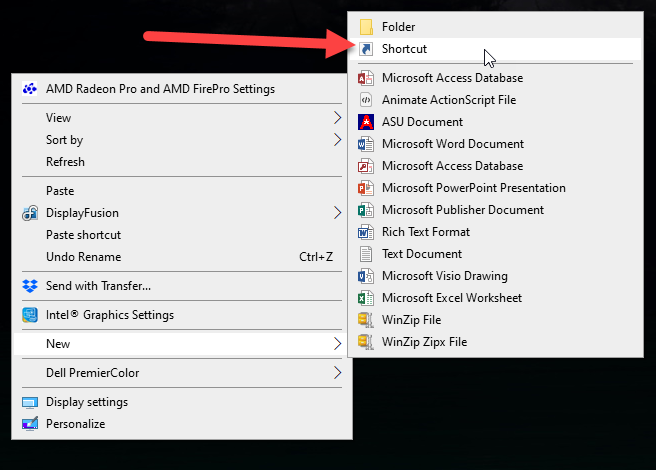
To create the initial shortcut, right click on your desktop and select new, and then shortcut.
Put in the path to pagent.exe, windows will help fill in as you type.
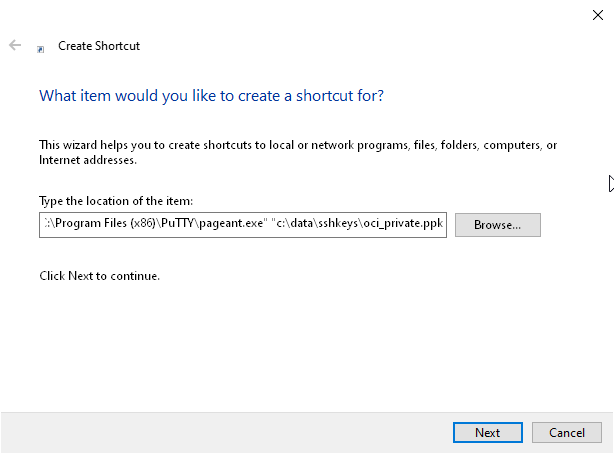
Once you have the pagent.exe, put double quotes around the full program name, and then a space and another double quote with the ppk file you want to load. You can have multiple ppk files
“C:\Program Files (x86)\PuTTY\pageant.exe” “c:\data\sshkeys\oci_private.ppk” “c:\data\sshkeys\demo_key.ppk”
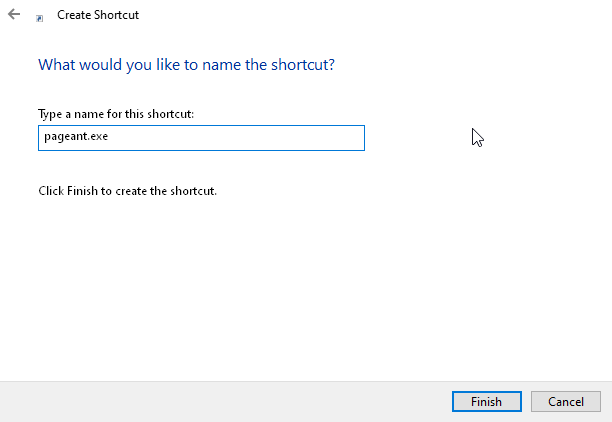
Name the shortcut and save it. Now , you can simply run this to start pagent, and have your keys automatically load. But we can make this even easier by putting the shortcut into the startup folder.
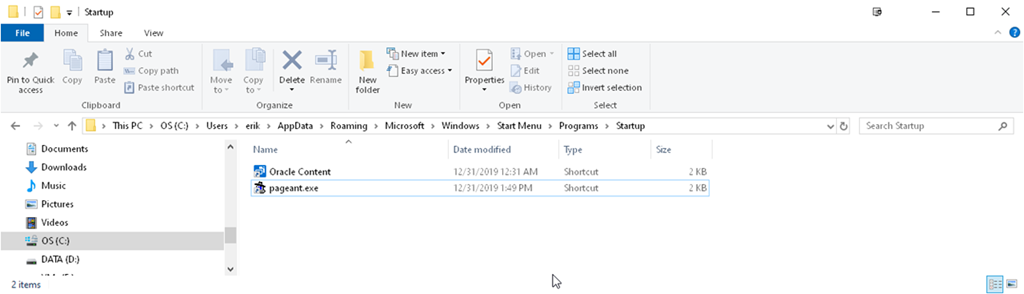
Each Windows 10 user has their own startup folder, located in
C:\Users\$USERNAME\AppData\Roaming\Microsoft\Windows\Start Menu\Programs\Startup
Copy the shortcut to your personal startup folder, and you are done.
Hopefully this was able to make you day just a little bit better. Any questions, feel free to drop me a note in the comments.

Thank you, this really helped
One less frustration in my life, thank you!
Happy to help
Hi,
I have noticed that the field “Type of the location of the item” where “You can have multiple ppk files” is limited. I meant that I can add ppk keys with their folder destinations with up to 260 characters. BUt I have let say 10 ppk keys which I want to be loaded automatically using pageant.exe
Can you please give an advise how can I add many ppk in the shortcut ?
Try putting the command in a bat file, and have the shortcut run the .bat file.
Erik
If you edit the shortcut, you can specify a Start in: location. If you put all of your ppk keys in a single folder, and then have the shortcut start in that folder you can just put the file names in without the folder destinations
When you have pageant installed, every ppk is stored like a pageant file, so when you double click over the ppk, is pageant which executes with the key added.
So, in the startup, you only have to put shortcuts to ppk files.
This is a great start on this function. Can you embed the passphrase?
There are a few ways to do that by redirecting via stdio, but then you are defeating the reason to have a passphrase.
Newer versions of Paegant have a new command line option to load keys encrypted, the passphrase wont be requested until the first time the key is needed.
https://tartarus.org/~simon/putty-prerel-snapshots/htmldoc/Chapter9.html#pageant-deferred-decryption
*1. To make a shortcut*: CTRL + drag and drop the exe.
*2. To open the startup folder*: WIN+R and type “shell:startup”